
Introduction
In Model driven apps, we sometimes need to show or hide a button on a subgrid based on the status of the parent record.
For example, we have an Account entity and a related Contact entity. Users can add contract lines from a subgrid on the Contract form.
Our requirement is simple:
- When the Account is active, users should be able to add contact.
- When the Account is inactive, users should not be able to add contact.
We can achieve this by writing a custom JavaScript function and adding a custom rule in Ribbon Workbench. However, I found a simpler solution that can work for certain scenarios: using the built-in Mscrm.EntityFormIsEnabled rule.
Details
Mscrm.EntityFormIsEnabled is a built-in rule used in the classic Dynamics CRM ribbon command system.
It checks whether the current entity form is enabled. For example, when a record is inactive or its form is disabled, this rule can prevent certain buttons from being enabled and that’s what we need.
How to implement the solution
Let’s see how we can use this rule to meet our requirement.
Step 1: Open Ribbon Workbench
Open your solution in Ribbon Workbench and select the child entity. In our example, this is the Contact entity.
Step 2: Find the subgrid button
Locate the Add New button in the subgrid ribbon. This is the button users click to create a new related record.
Right-click the button and select Customize Command to inspect the command associated with it.
Step 3: Check the existing enable rules
In the command configuration, look at the existing enable rules.
You may find the following rule:
Mscrm.EntityFormIsEnabled
This rule checks whether the form is enabled. If the rule returns false, the command is disabled.
Step 4: Use the existing rule
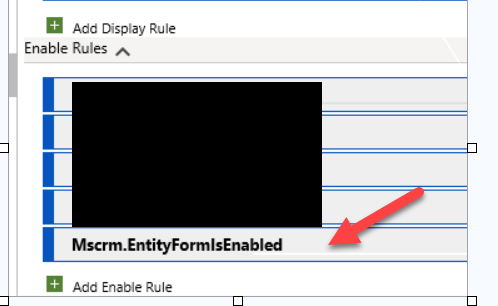
Now select your custom button and right click on that and select Customize Command. Now go to command for your button and add this rule under Enabled rule like below:
Important: This approach relies on the form’s enabled state. It does not directly check any custom status or Status Reason field. If you need to hide the button based on a specific business status while the form remains enabled, you have to use custom rule.
Step 5: Save, publish, and test
Save your changes in Ribbon Workbench and publish the customizations.
Summary
This way we can use out of the box rule to hide/show our custom button so before writing custom code check if we can use something out of the box to implement our requirement.
Hope it will help someone!!
Keep learning and Keep Sharing!!