
Do you want to display an AI-generated summary on a web page in Power Pages? If yes, this article will help you understand how to implement this feature step by step.
Scenario
Let’s consider an example. We have an Event table (a custom table) in Dataverse that we use in Power Pages. Our Power Pages website has an Event List page where users can browse available events and select an event to view its details on a separate page.
We want to display an AI-generated summary of the selected event at the top of the event details page. This will help users quickly understand the important information without reading all the event details.
Since we are using a custom Event table, we first need to enable the required Web API settings in Power Pages Management model driven app.
Configure Power Pages Site Settings
Before adding the Summary component to the page, we need to configure the following site settings in Power Pages Management model driven app.
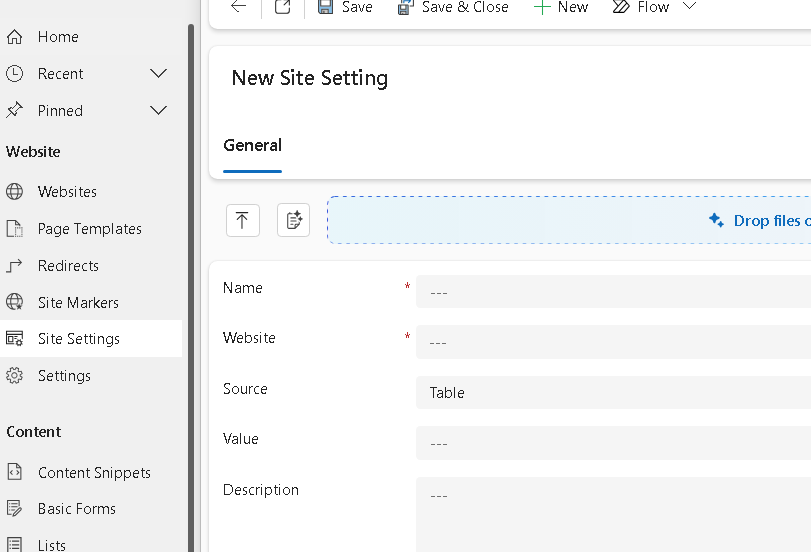
1. Enable Web API for the Event table
This setting enables the Power Pages Web API for our custom Event table. We need to use logical name of the table
| Property | Value |
|---|---|
| Name | Webapi/him_event/enabled |
| Website | Power Pages website name |
| Source | Table |
| Value | true |
2. Enable access to the required Event table fields
This setting specifies which Event table fields can be accessed through the Web API.
| Property | Value |
|---|---|
| Name | Webapi/him_event/fields |
| Website | Power Pages website name |
| Source | Table |
| Value | List of fields you want to access from API |
Add the names of all the fields that you want to use when generating the AI summary for example event name, event date, description, location etc.
3. Enable Summary feature
Add the following site setting to enable the Summary feature.
| Property | Value |
|---|---|
| Name | Summarization/Data/Enable |
| Website | Power Pages website name |
| Source | Table |
| Value | true |
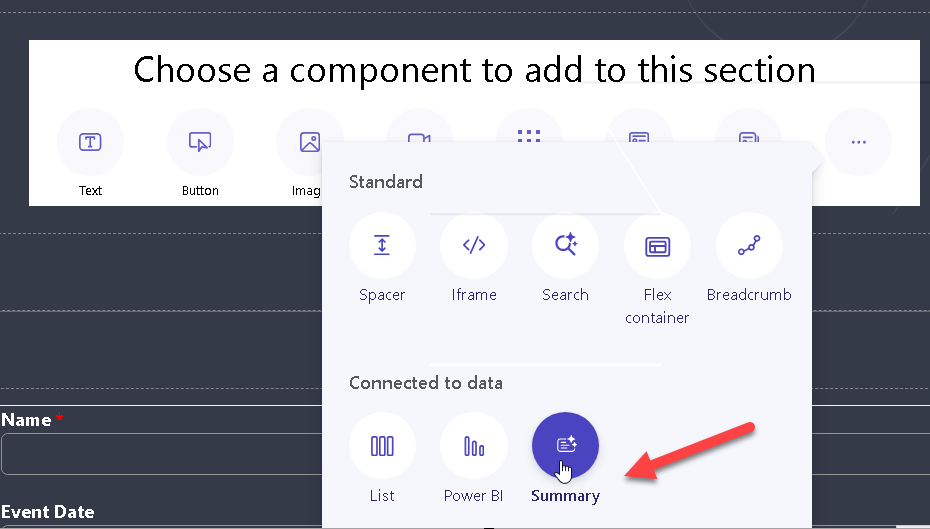
Once all the required site settings are configured, we can add the Summary component to our Power Pages webpage like below:
Next we will configure the Summary component to retrieve the selected Event record and generate an AI-powered summary using the configured table fields.Configure the component using the settings shown below.
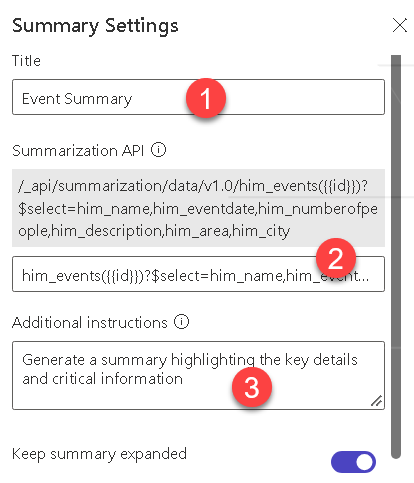
In point 2 we are using following API call
him_events({{id}})?$select=him_name,him_eventdate,him_numberofpeople,him_description,him_area,him_city
This api call will be using id parameter from the webpage will be collect summary of the event like below:
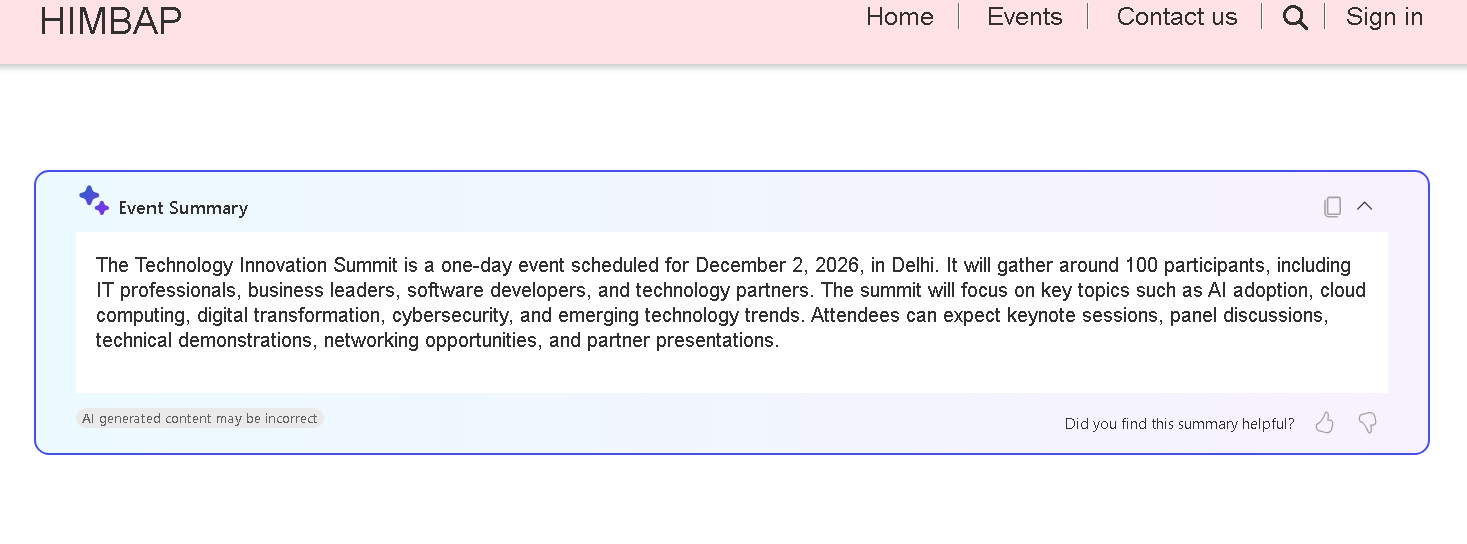
Summary
This way, we can configure API settings and display AI-generated summaries for custom tables in Power Pages.
Hope it will help someone!!
Keep learning and Keep Sharing!!